> ## Documentation Index
> Fetch the complete documentation index at: https://docs.getunblocked.com/llms.txt
> Use this file to discover all available pages before exploring further.
# Data Source Presets
> Create data source presets to control which connected sources, channels, and documents Unblocked references when answering questions for you or your team.
Data source presets allow you to configure specific data sources for Unblocked to reference when answering questions. This can be useful when you don't want Unblocked to reference every connected data source.
For instance, if you are an engineer, you may want to receive answers only using data from the `#engineering` and `#general` Slack channels, and not include any data from the `#sales` channel, or from any Notion documents.
## Create a Data Source Preset
To create a new data source preset, navigate to the **Settings** section of the [Unblocked web app](/using-unblocked/on-the-web). Under **Shared Presets**, select **Create Preset**.
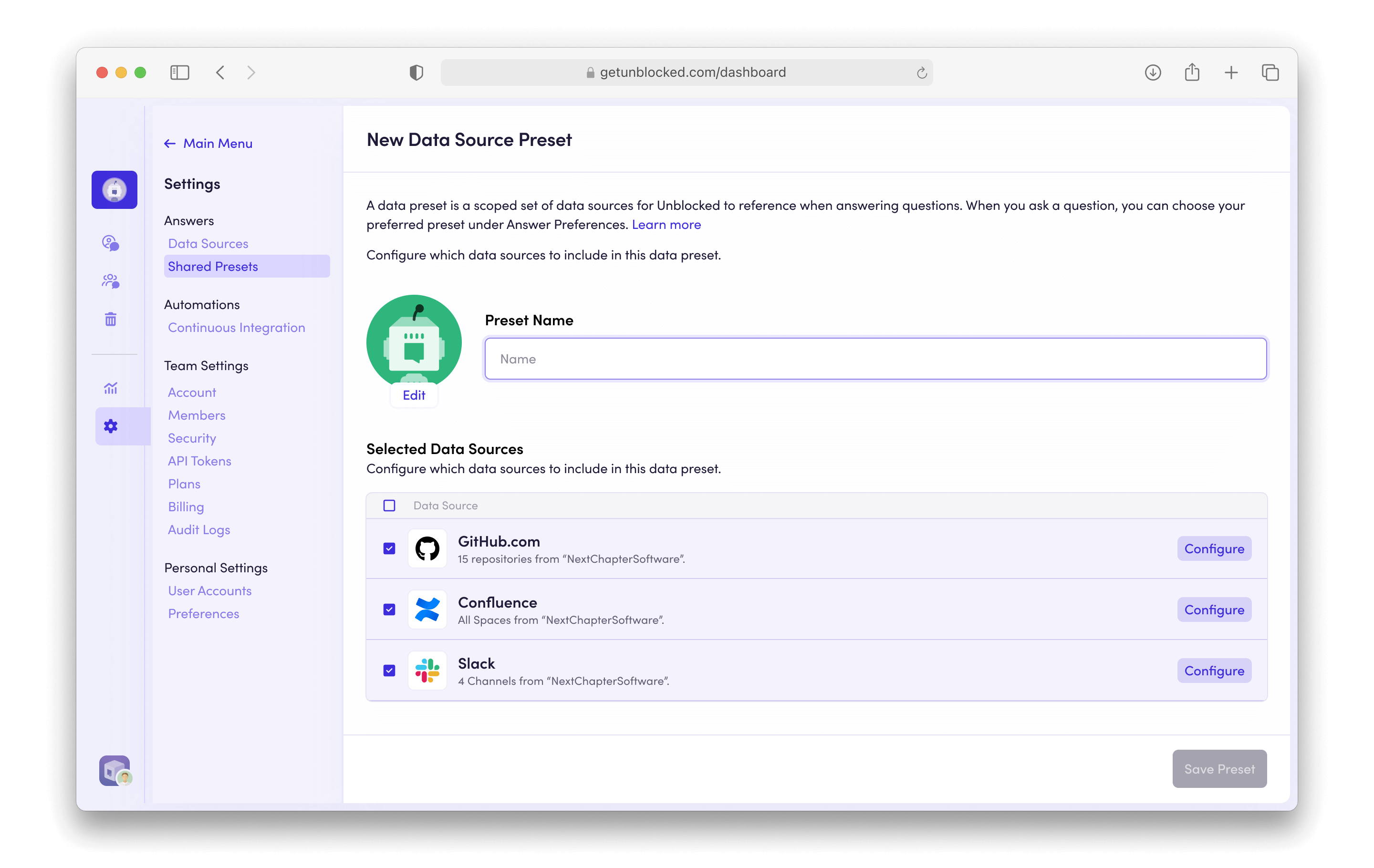 Every data source connected by your team is displayed in the **Data Sources** list. Simply click each individual row to include or exclude the data source from the preset.
By default, all connected documents will be included with each selected data source. To specify particular documents to include with each data source, click the **Configure** button.
Every data source connected by your team is displayed in the **Data Sources** list. Simply click each individual row to include or exclude the data source from the preset.
By default, all connected documents will be included with each selected data source. To specify particular documents to include with each data source, click the **Configure** button.
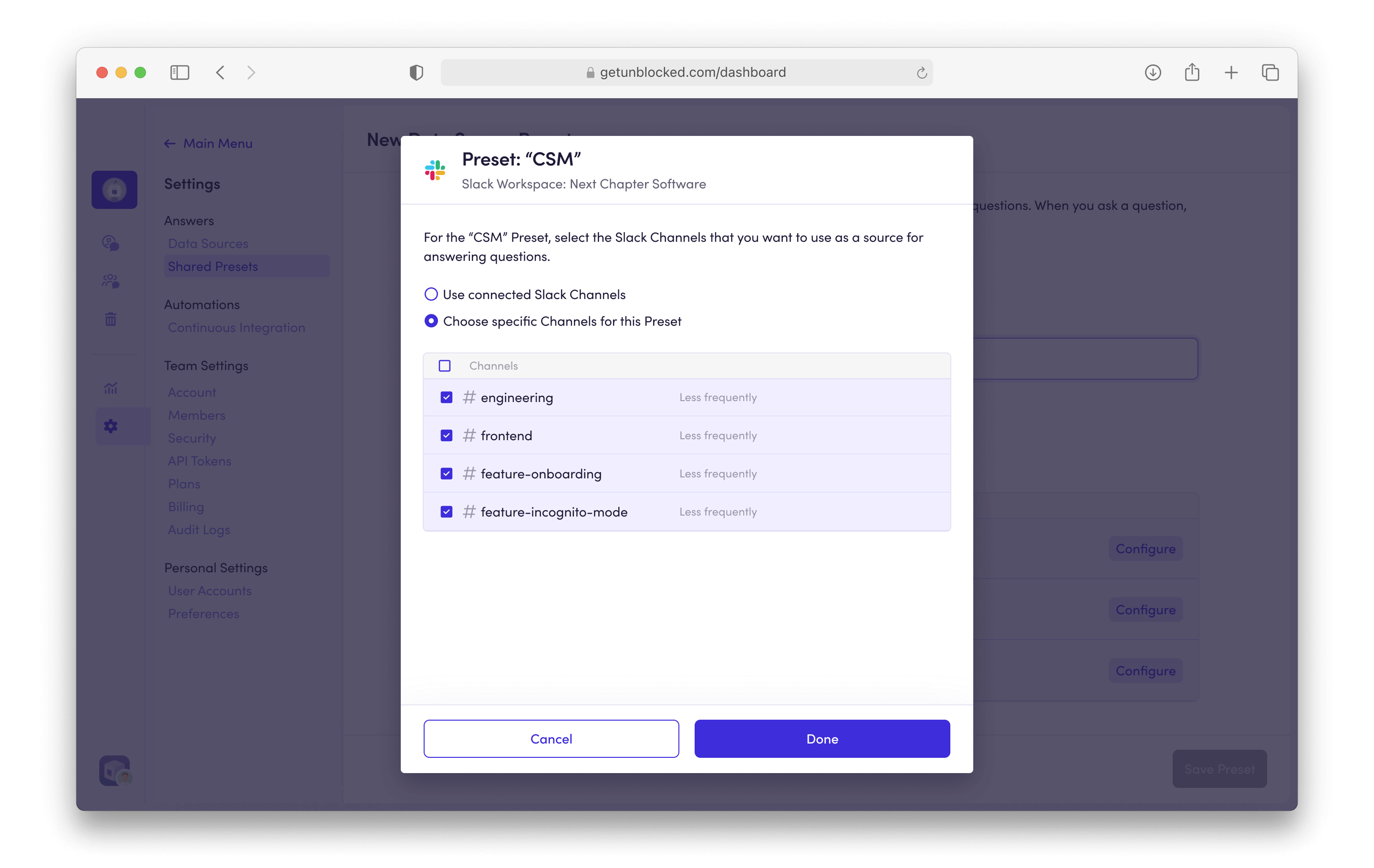 Click **Save** to save the preset.
All saved data source presets are shared across all members of your team.
## Using a Data Source Preset
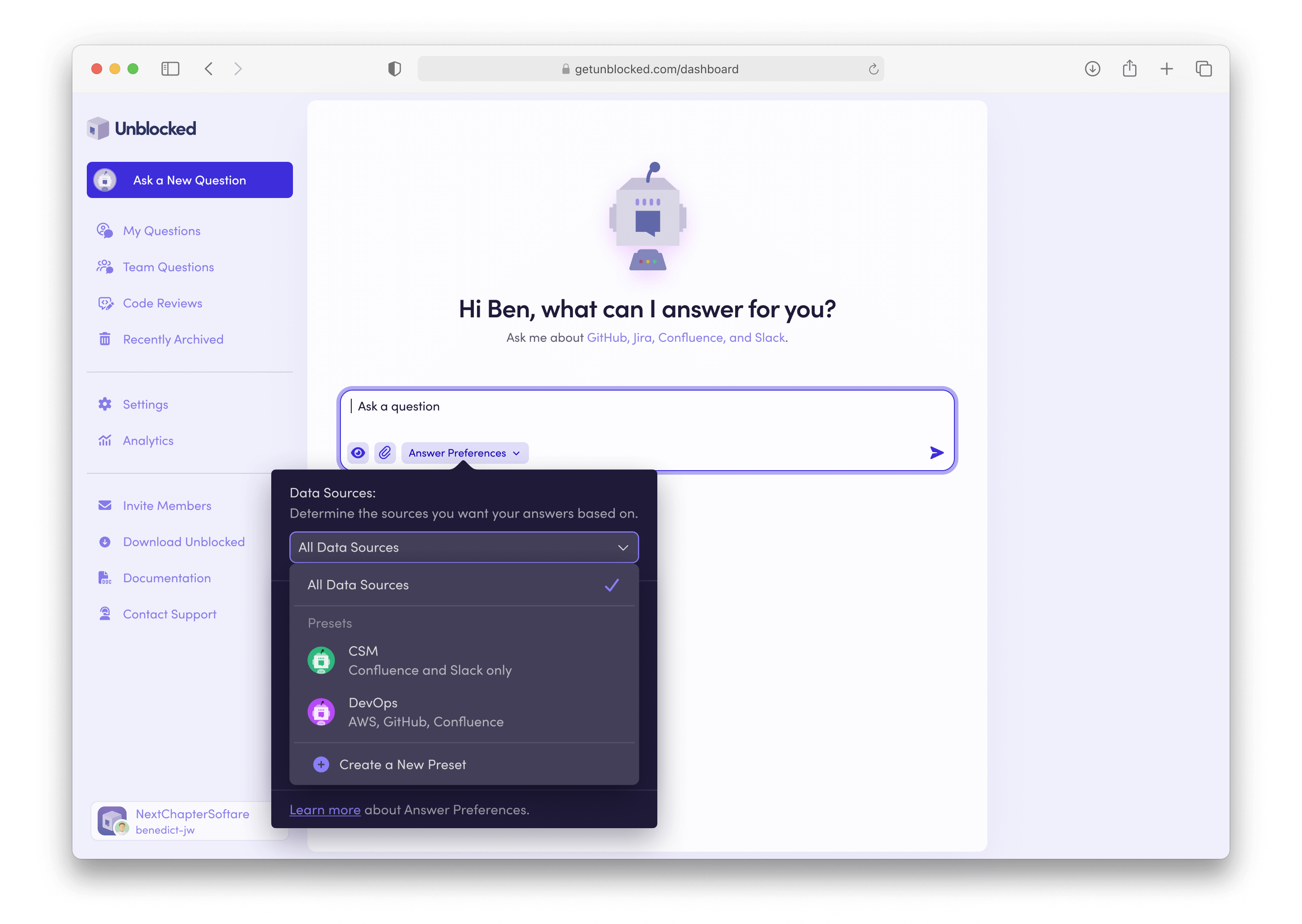
To use a data source preset when asking a question, click on the **Answer Preferences** button, and select the preset you'd like to use in the **Data Sources** dropdown. The selected preset is saved as your preferred preset for future questions.
Click **Save** to save the preset.
All saved data source presets are shared across all members of your team.
## Using a Data Source Preset
To use a data source preset when asking a question, click on the **Answer Preferences** button, and select the preset you'd like to use in the **Data Sources** dropdown. The selected preset is saved as your preferred preset for future questions.
 Preferred presets are unique to every individual user, and persisted across
all Unblocked apps ([on the web](/using-unblocked/on-the-web), [in
your messaging platform](/using-unblocked/in-messaging-platforms), and [in the Mac
app](/using-unblocked/on-your-mac)).
## Presets and Unblocked MCP
Data source presets apply to Q\&A answers on the web, in the Mac app, and in your messaging platform. They don't currently apply to [Unblocked MCP](/unblocked-mcp/mcp-overview) queries — when an agent calls `context_research`, it searches all data sources that the token or user can access.
Preferred presets are unique to every individual user, and persisted across
all Unblocked apps ([on the web](/using-unblocked/on-the-web), [in
your messaging platform](/using-unblocked/in-messaging-platforms), and [in the Mac
app](/using-unblocked/on-your-mac)).
## Presets and Unblocked MCP
Data source presets apply to Q\&A answers on the web, in the Mac app, and in your messaging platform. They don't currently apply to [Unblocked MCP](/unblocked-mcp/mcp-overview) queries — when an agent calls `context_research`, it searches all data sources that the token or user can access.