

Setting up Code Review
To set up Code Review for the first time, select Code Review from the left sidebar. Next, click Set Up Code Review. If you haven’t connected your issue tracker, you’ll be prompted to do so. This lets Unblocked use linked issues to understand the requirements behind a pull request and check whether the code addresses them.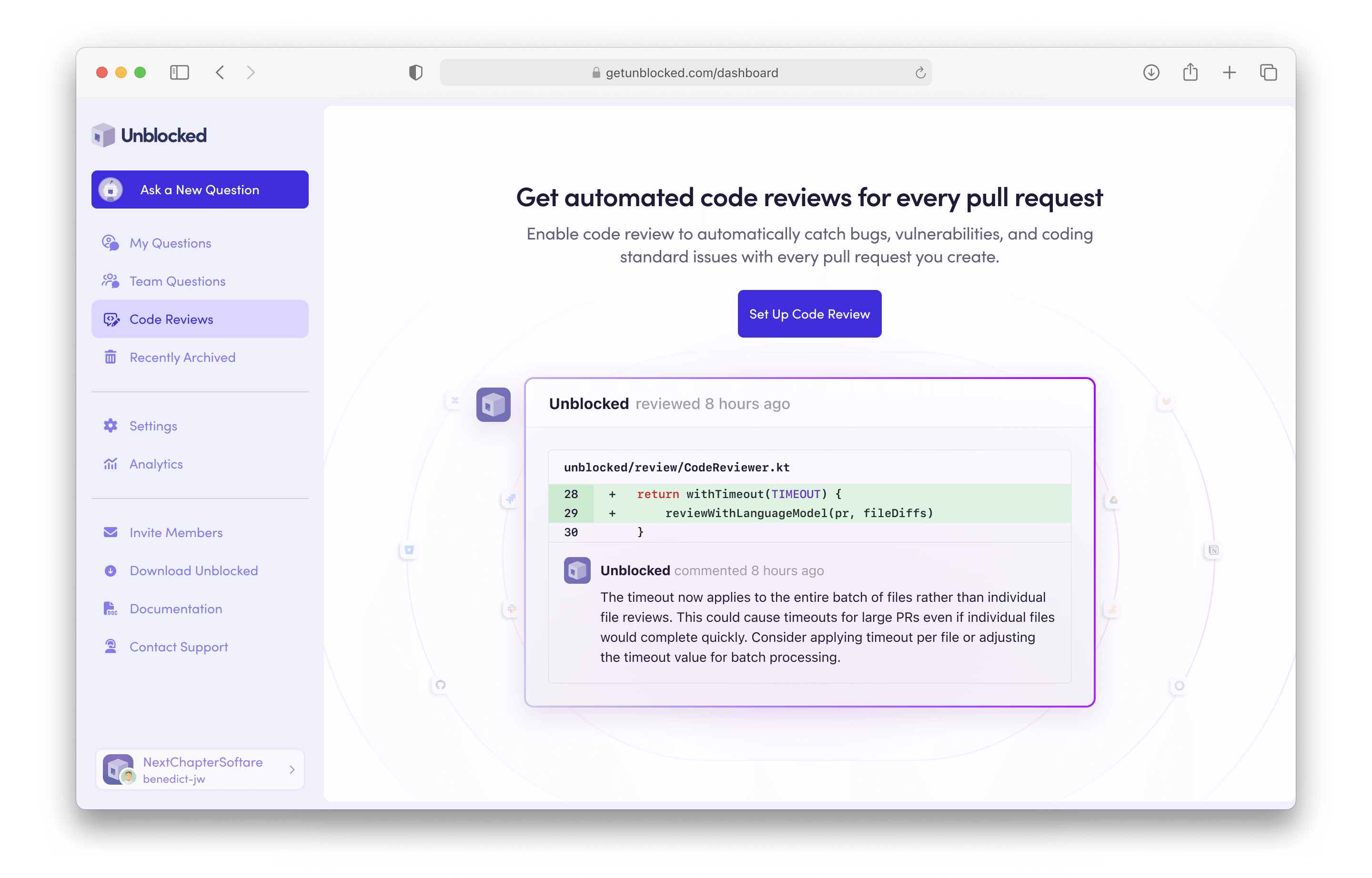
Set up a bot account for Azure DevOps, Bitbucket, or GitLab
Set up a bot account for Azure DevOps, Bitbucket, or GitLab
- Azure DevOps
- Bitbucket Cloud
- Bitbucket Data Center
- GitLab Cloud
- GitLab Self-Managed
For Azure DevOps repositories, code review comments need to be posted on behalf of an Azure DevOps user account. We recommend creating an Unblocked bot account for this specific purpose.
1
Create a bot account
- In the Microsoft Entra admin center, go to Entra ID > Users.
- Click New user, then select Create new user.
-
Create a new user with the following information:
- Name: Unblocked
-
Avatar: download and use the Unblocked logo below
 Download PNG
- In Azure DevOps, sign in to your organization as a Project Collection Administrator.
- Click Organization settings > Users, then click Add users.
- Enter the bot user’s email address.
- Set Access level to Basic.
- Under Add to projects, select each project where Unblocked should review pull requests.
- Set Azure DevOps Groups to Project Contributors.
- Click Add.

2
Select your Bot Account
In Unblocked, search for the bot account you just created and select it. You may be required to authorize this account with Unblocked.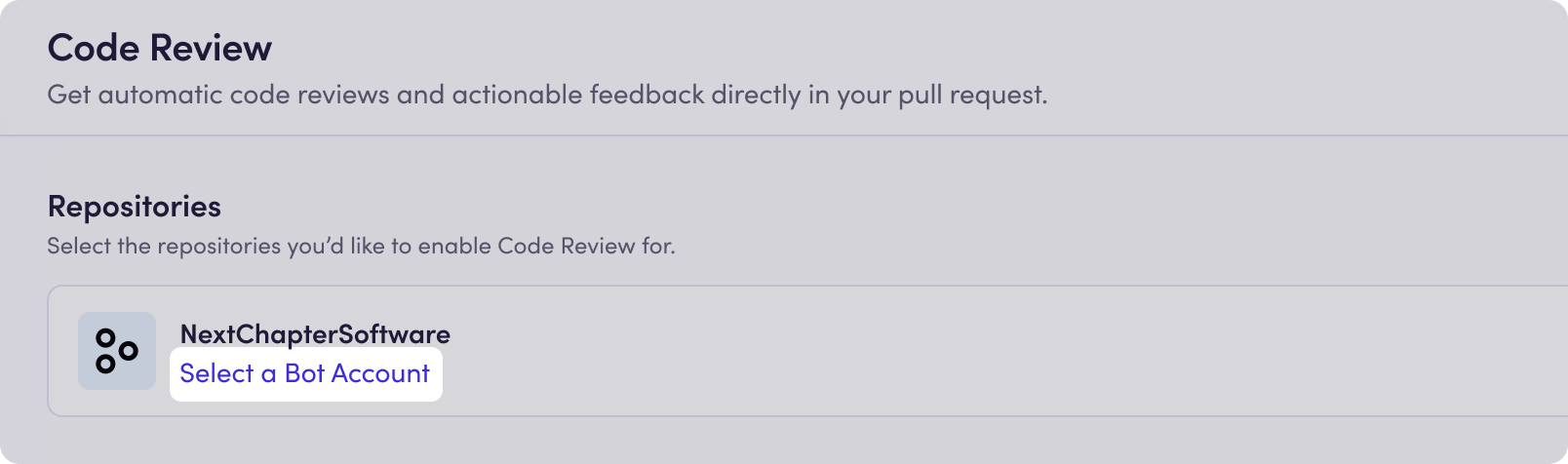
Repositories
Choose which repositories receive automatic Code Reviews. Click Configure next to your source control organization and select the repositories you want to enable.Allowed authors
Use Manage Authors to choose whose pull requests are eligible for automatic Code Reviews. By default, all PR authors are eligible. To limit reviews, choose Specific Authors and select the authors you want to include. Bot-authored pull requests are excluded from automatic reviews by default. On GitHub and GitHub Enterprise, pull requests authored by Dependabot, GitHub Actions, and Renovate are always excluded from automatic reviews. You can still request a manual review by mentioning@unblocked.
Authors who are not selected can also receive a manual review. See requesting a review.
Filters
Filter automatic reviews by source branch, target branch, label, or PR title. Each filter can include matching pull requests or exclude them. A pull request must satisfy all configured filters to be reviewed. All matching is case insensitive. Source branch, target branch, and label filters support* to match any characters; PR title filters match words or phrases. Label filters are only available for GitHub and GitLab repositories, including self-hosted instances.
Pull request settings
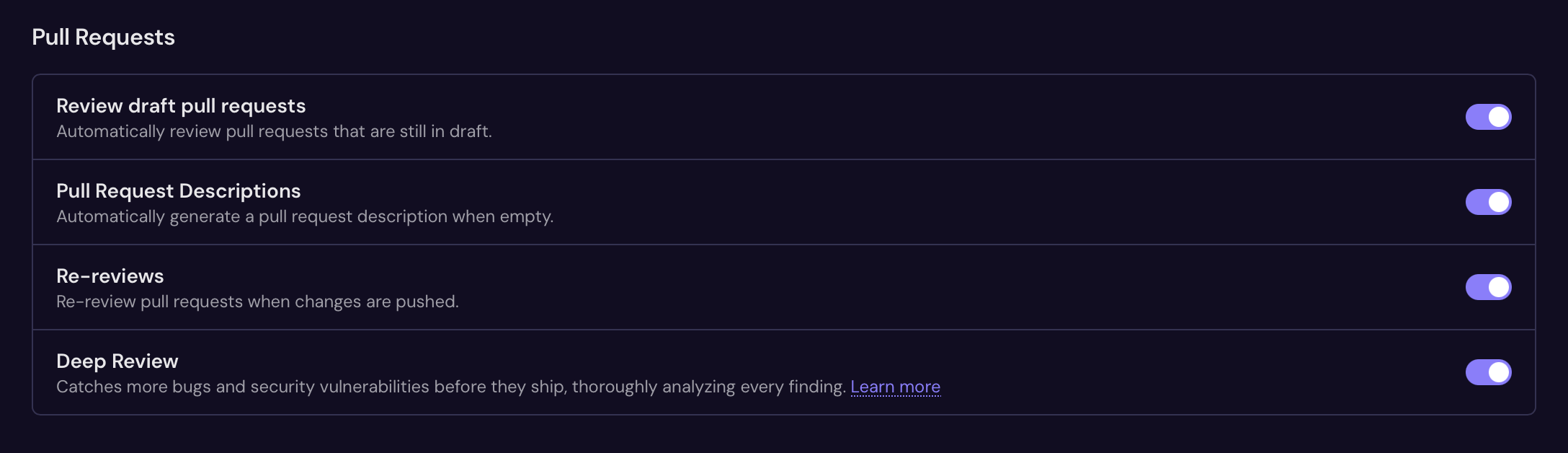
Choose when Unblocked reviews your pull requests, whether it generates descriptions, and whether to use Deep Review.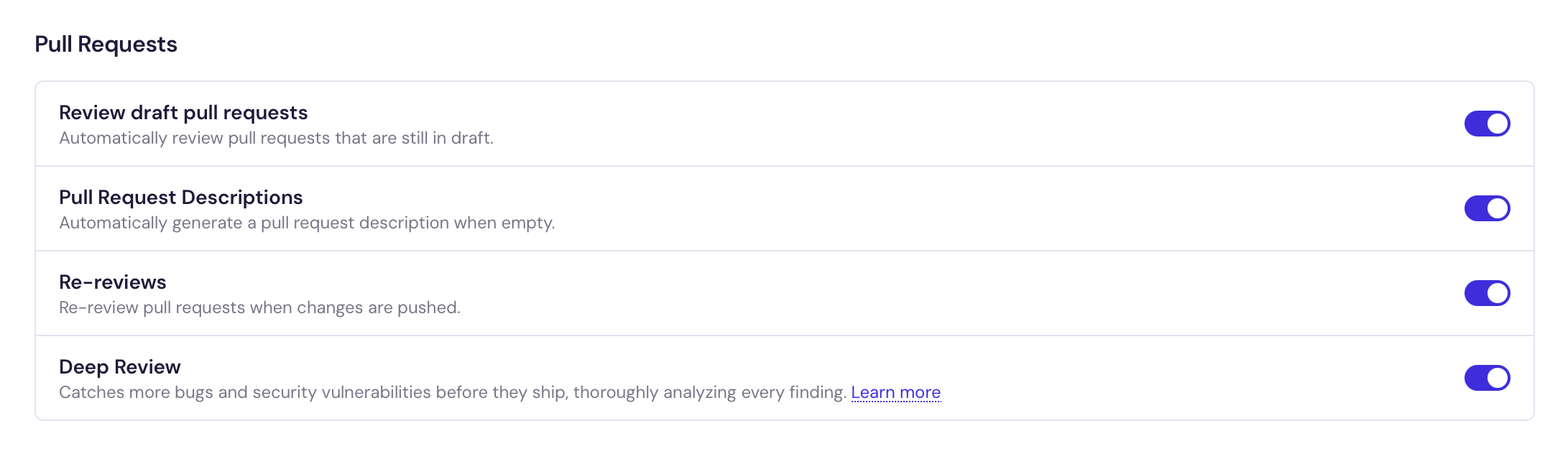
Review draft pull requests
Enable Review draft pull requests to receive automatic reviews while pull requests are still in draft. Draft reviews are off by default. Individual developers can override the team default in their user preferences.Pull request descriptions
Enable Pull Request Descriptions to fill in an empty pull request description automatically. The default format has two sections:- Context explains why the change exists, drawing on related issues, team discussions, documentation, and prior pull requests. It connects the change to the request, incident, or decision that motivated it, with links to the supporting sources so reviewers can follow the reasoning. Unblocked omits this section when it cannot find sources that establish the motivation.
- Overview summarizes what changed and its impact, based on the pull request diff. It helps reviewers understand the scope and behavior of the change before reading the code.
Re-reviews
Enable Re-reviews to automatically review pull requests again when changes are pushed, so you receive feedback as the code changes. You can also request a review manually by mentioning@unblocked in a pull request comment.
Deep Review
Deep Review catches more bugs and security vulnerabilities before they ship, including subtle issues that standard reviewers can miss. Enable Deep Review in your Code Review settings when you want additional scrutiny for security-sensitive or other high-risk changes, or when coding agents write and revise your code. During a Deep Review, multiple agents trace changes through callers and downstream code, including across services and languages, and verify findings before posting comments. Deep Reviews typically take up to 15 minutes and may use more credits. See Code Review credits. Our Code Review benchmark includes results, methodology, and the individual review findings.
Recall first: how we built Unblocked's Deep code review
How Deep Review is designed to miss fewer bugs, and when that trade-off fits your team's workflow.
Approval workflow
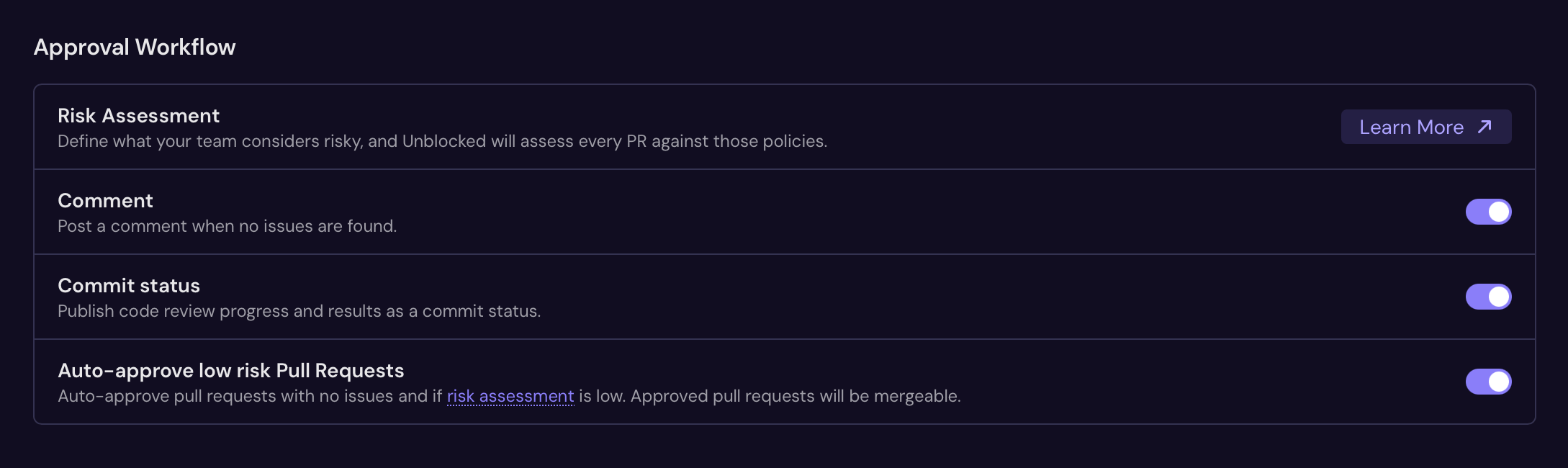
Use the Approval Workflow settings to assess risk, publish review status, and control what happens when a review finds no issues.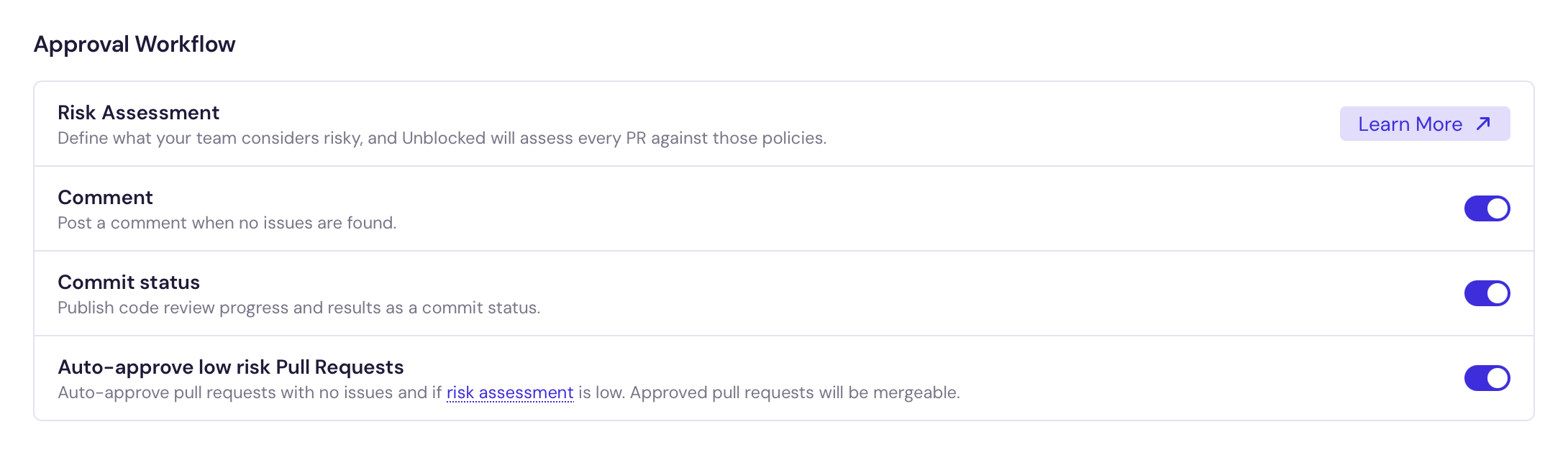
Risk assessment
Use risk assessment to enable auto-approval for changes your team considers low risk. Define your risk policies in the repository, and Unblocked evaluates each pull request against them. With auto-approval enabled, only pull requests with a risk score oflow or lowest and no review findings qualify. See risk assessment setup.
Comment
Enable Comment to receive a comment confirming that a review found no issues. Turn it off to omit that confirmation. Use the separate Auto-approve low risk Pull Requests setting to control whether qualifying pull requests receive an approval.Commit status
Enable Commit status to require an Unblocked review before a pull request can merge. Commit status is off by default. After you enable it, you can mark Unblocked Review as a required status check in your source control provider’s branch protection settings. The status is pending while a review is queued or running, and reports success when the review completes, whether or not it found issues. The status description includes the number of findings, with details in the review comments. If a review fails, the status reports an error and blocks the merge until a later review succeeds. To run the review again, mention@unblocked in a pull request comment.
Commit status is available on GitHub, GitHub Enterprise, GitLab, GitLab Self-Managed, Bitbucket, and Bitbucket Data Center. It isn’t available on Azure DevOps.
Auto-approve low risk pull requests
Approve pull requests that have no issues and a risk score oflow or lowest. This setting appears when your source control integration supports approvals that count toward pull request requirements.
Legacy approvals
Approve pull requests that have no issues for GitHub organizations whose Unblocked integration does not have thecontents:write permission. These approvals do not count toward required approvals.
Custom rules
Use your repository’s coding instructions to guide reviews and exclude paths that do not need review.

Repository instructions
Enable Repository Instructions to have Unblocked follow coding rules in files such asAGENTS.md, CLAUDE.md, and .github/copilot-instructions.md. Write specific, actionable instructions that reflect your repository’s practices.
Supported instruction files and paths
Supported instruction files and paths
- Root files
- Tool paths
- Rule directories
- Nested files
Markdown instruction filesLowercase forms are also recognized for AGENT.md, AGENTS.md, ARCHITECTURE.md, CLAUDE.md, CONTRIBUTING.md, CONVENTIONS.md, and GEMINI.md.Tool rule files
Writing useful repository instructions
Writing useful repository instructions
Give concrete guidance, such as “Use
event.id for idempotent event processing” or “Use Money for monetary values; avoid floating-point arithmetic.”Avoid general requests such as “Check for security and correctness issues” or “Make sure database changes are safe.” These do not give the reviewer repository-specific guidance.Excluded paths
Use excluded paths to keep reviews focused on the files you want feedback on, leaving out files or directories that do not need review. Patterns use glob syntax:*.md excludes Markdown files at any depth, src/test/** excludes files under that directory from the repository root, and package-lock.json excludes that file.
Unblocked automatically skips binary files. It also skips generated and vendored files marked with GitHub Linguist attributes in your repository’s .gitattributes. If you already use these markers, no additional configuration is needed.
To mark generated or vendored directories, add rules to .gitattributes:
User preferences
Each developer can customize their code review experience from their personal preferences page. To update these settings, go to Settings > Personal Settings > Preferences.- Receive automated code reviews as comments on my pull requests — Turn automatic review comments on or off for your pull requests. This does not change reviews for other team members.
- Review my draft pull requests — If you want early feedback during development, enable review of your draft pull requests. Unblocked will review drafts in addition to regular PRs.
- Automatically generate pull request descriptions — Turn this on to let Unblocked fill in your pull request description when you open a pull request with a blank description.